
Add the map
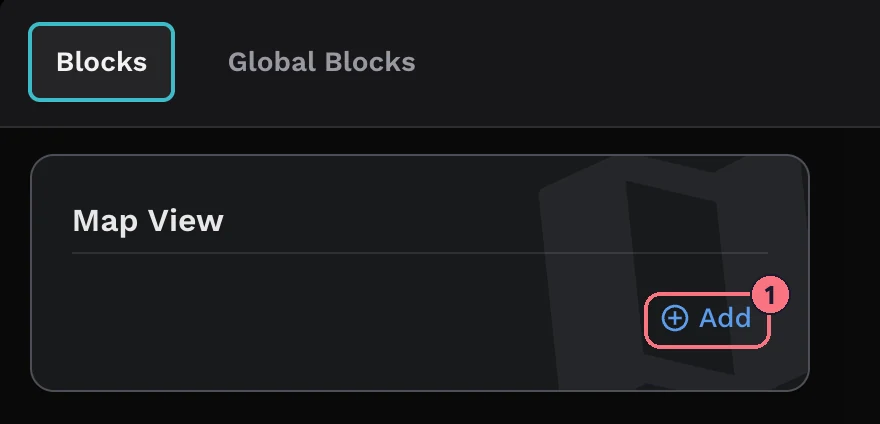
- Choose + Add at the top left of the editor, then Map View, then Add on its card (1).
The Search Tour Location window opens:
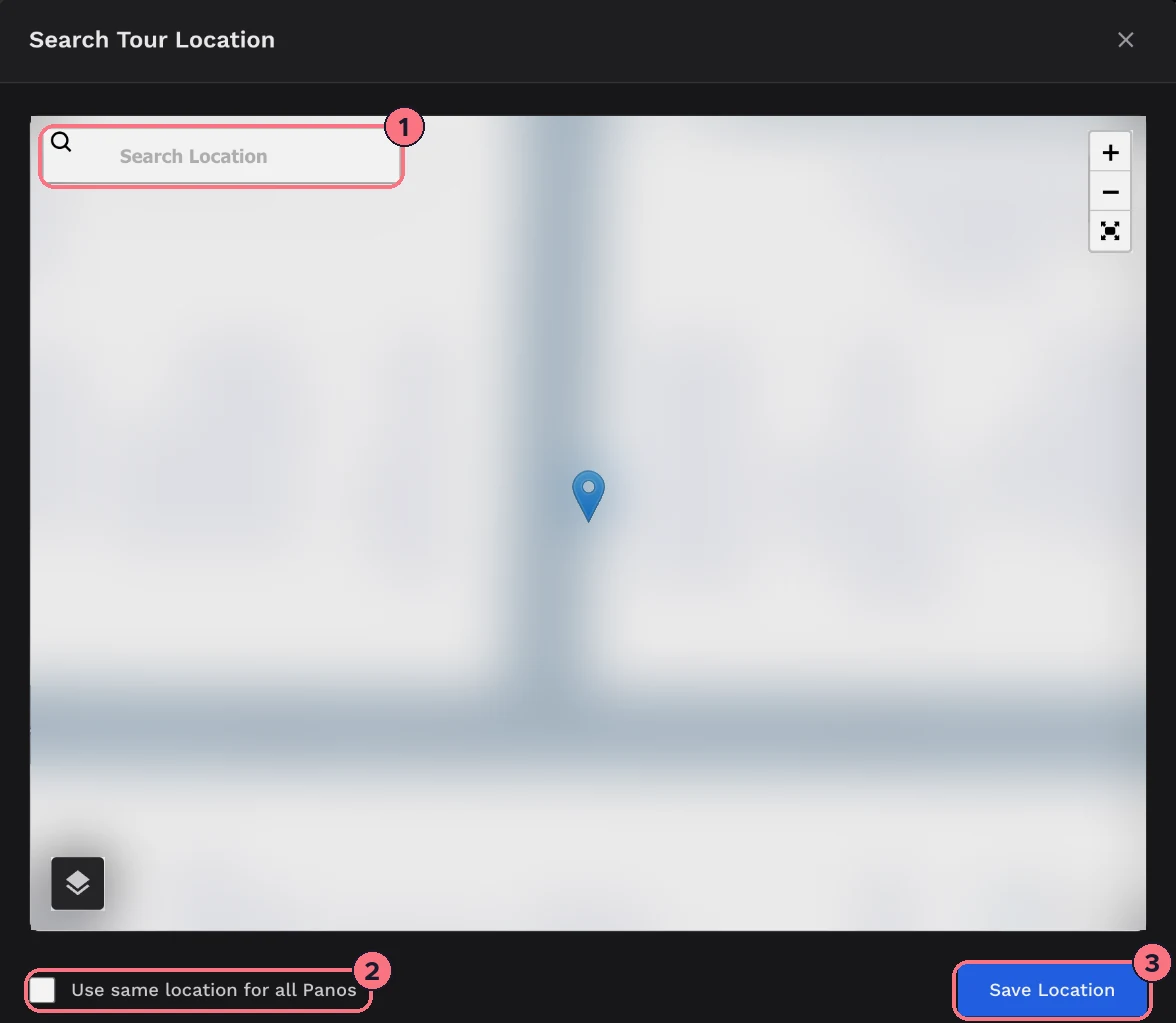
- Type the address in Search Location and pick it from the list. The pin moves there; click the map or drag the pin to fine-tune it, and use the layers button at the bottom left to switch to satellite.
- Tick Use same location for all Panos to give every panorama in the tour this location too. It’s useful for a single property; leave it off if your panoramas already have their own locations, such as a walk around a campus.
- Choose Save Location. The map is added, the Map button appears on the control bar, and the map’s settings open on the right.
Map settings
At the top, Enable Map shows or hides the Map button in the tour. Under Map Location, Edit Map Location opens the search window again.
Display Options
- View StyleSlide opens the map in a panel that slides in; Popup opens it in a window over the tour.
- Default ViewWhether the map starts as a street Map or a Satellite view.
- VisibilityWhat the map shows: All (the tour’s location and the panoramas), Location Only (one pin for the tour) or Panos Only (a pin for each panorama that has a location).
- ZoomHow close the map starts, from 0 (the whole world) to 30. It starts at 20, about street level.
Markers & Icons
- Location TitleThe name shown for the tour’s pin. It starts as the address you searched for.
- Loc Icon, Pano IconChoose your own pin images for the tour’s location and for the panoramas. Each appears only when Visibility includes it.
Line up north
So that the map and the panoramas agree on direction, set north for each panorama. North Alignment, at the bottom of the map settings, shows the panorama that’s open in the editor with a compass:
- Drag the view until you’re facing north.
- Choose Save. The editor confirms “North position set.”
- Open the next panorama and repeat. Reset turns the view back to the start if you lose your place.
More on this in How to set up the north orientation.
Remove the map
Choose the bin icon at the top of the map settings. It removes the map straight away, with no confirmation.
Tips
- Private address? For a home, consider Location Only with the zoom set further out, so visitors see the area rather than the exact house.
- Keep the control bar showing. The Map button lives on it; if you hide the control bar, link to the map from a hotspot or the menu instead.
Common questions
Can visitors see where each panorama was taken?
Yes, if your panoramas have locations. Under Display Options, set Visibility to All or Panos Only to show a pin for each panorama.
How do I avoid showing a home’s exact address?
Set Visibility to Location Only and the Zoom further out, so visitors see the area rather than the exact house.
Can the map start as a satellite view?
Yes. Under Display Options, set Default View to Satellite.