
Create a brand kit
- In your dashboard, open Brands in the left menu and choose Create Brand. The Brand Settings panel opens.
- Type a Brand Name (1), such as the agency’s name.
- Under Logo, choose Change (2) and pick or upload your logo.
- Choose a Tour Font (3).
- Open the hotspot sections (4) to set how hotspots look (see below).
- Choose Save (5). The kit appears on the Brands page.
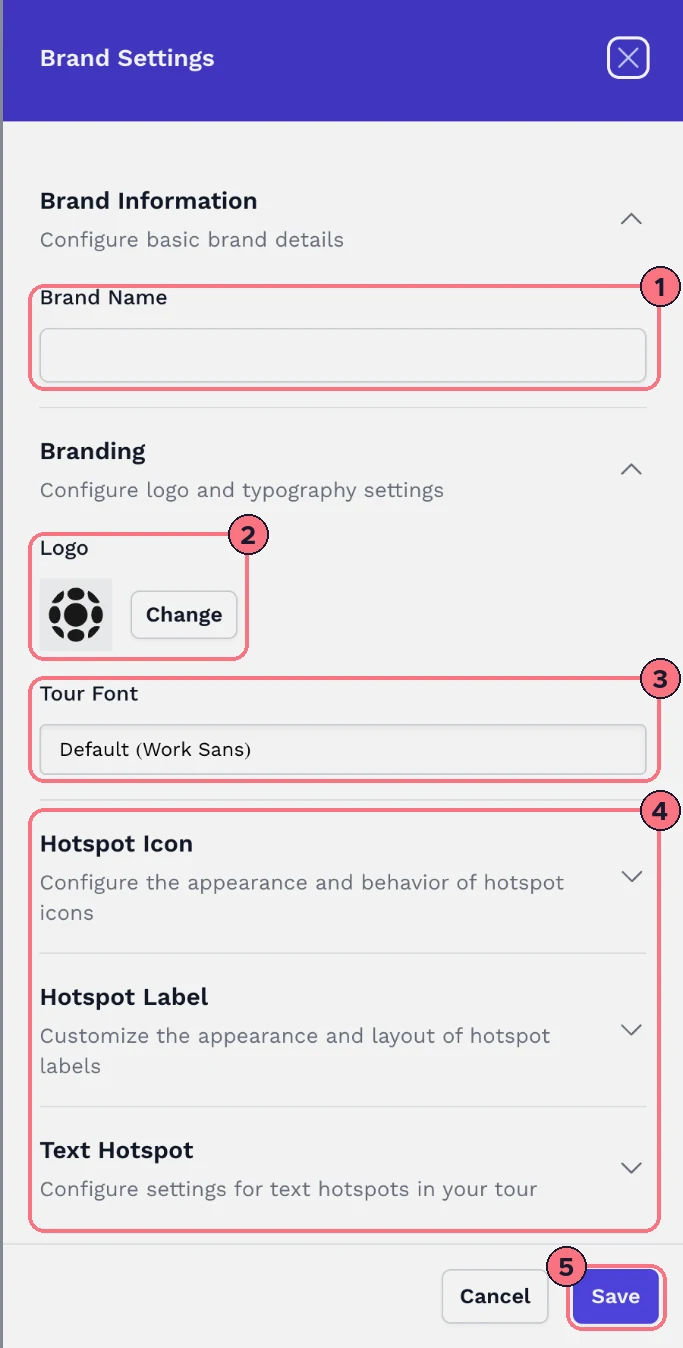
A kit needs a name and a logo; the panel tells you if either is missing.
Hotspot style in a kit
- Hotspot IconThe icon, whether it lies flat on the floor, its size, rotation and transparency.
- Hotspot LabelBackground and text colours, size (10 to 64), border colour, font, alignment, whether the label shows, width, padding, margin, border width and corner radius.
- Text HotspotBackground and text colours, text size and font for text hotspots.
These are the same settings as a single hotspot’s, so Style hotspot labels and icons explains what each one does.
Use a brand kit
- On a new tour: choose the kit under Brand when you create the tour. See Create your first tour.
- On an existing tour: in the editor, open the Tour tab, then Tour Settings, and choose the kit under Brand. See Tour settings.
If you edit a kit later and a tour doesn’t show the change, choose the kit again under Brand in that tour.
Edit or delete a kit
On the Brands page, choose Edit under a kit to change it, or Delete to remove it. The page asks before deleting. The Default card is the standard TeliportMe look and can’t be deleted.
How many kits you can have
The number of brand kits depends on your plan. When you’ve used them all, the Brands page shows Brand Limit Reached, and Create Brand offers an upgrade.
Common questions
How many brand kits can I have?
Essential includes 1 brand kit, Business includes 5, and Unlimited has no limit. When yours are used up, the Brands page shows Brand Limit Reached.
Can I make a brand kit for each client?
Yes. Agencies and photographers make one kit per client, with the client’s logo, so each client’s tours carry the client’s brand. Choose the client’s kit under Brand on each of their tours.
Why doesn’t my tour show the changes I made to a brand kit?
A tour may not pick up edits to its brand kit on its own. Choose the kit again under Brand in the tour’s Tour Settings.
Can I delete the Default brand kit?
No. The Default card is the standard TeliportMe look and can’t be deleted. Any kit you made can be deleted from the Brands page, after you confirm.